(Not for brand new out of the box. This is if they have had the board awhile. If brand new, skip to step 2.)
If your Prodigy Dartboard is not scoring accurately, there could be a few things causing the issue.
- First try cleaning the background. NOTE: Only clean with a slightly damp cloth or with a can of compressed air. DO NOT use a wet cloth or abrasive chemicals.
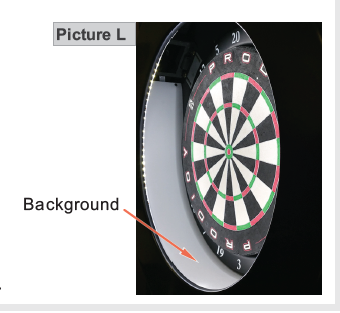
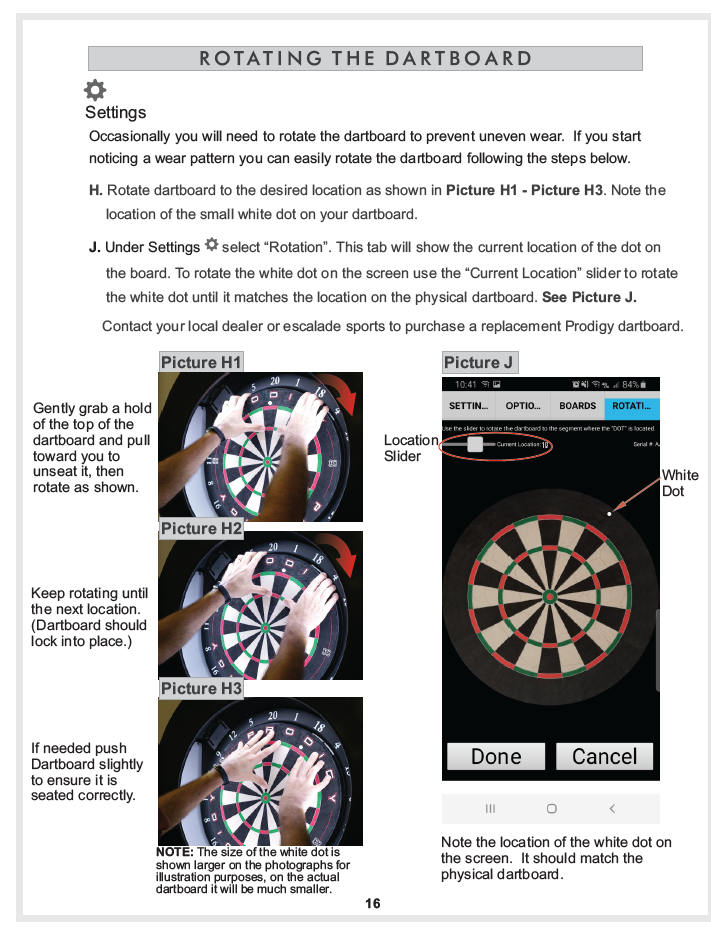
- Be sure the dartboard rotation matches the rotation on the screen. There is a white dot on the dartboard as well as the screen for reference. Also check to see the sisal board is seated in the groove. (See graphic below for more details.)
- Check for sisal pieces protruding from the face of the board. Visually inspect the face of the board and locate any sisal that may be protruding from the board. Remove any fibers that you find. Tweezers can be helpful for this.
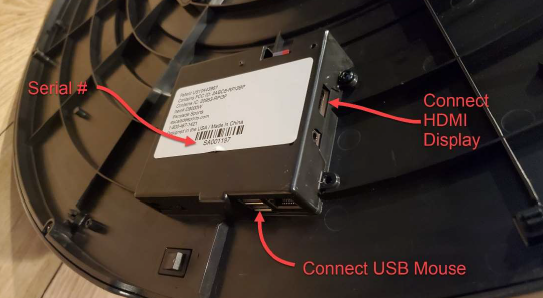
- You can also use the live view to help find any protruding sisal pieces. Attach a mouse to the USB port and a monitor to the HDMI port of the board and click on the gear icon and then “Live View”. This will show the camera views on the Monitor. Top to Bottom the views are Camera 1 Live View, Camera 2 Live view, Camera 1 Last Score View, and then Camera 2 Last Score. Look at the live views and look for fibers sticking out of the board or dirty spots on the background. Clean off anything you see.
If this does not correct the issue, please let us know and we can troubleshoot further from here.
Have a great day!
2nd step
It may be picking up a source of vibration or noise that is causing it to score an error. It may also be picking up some vibration if it is on the same wall or the other side of the wall of a TV, speaker, or something that may be causing some vibration.
I would check for the following:
1. Some source of vibration
2. Wires touching speaker
3. If the dartboard sound is turned up REAL Loud. Sometimes it causes it's own error.
You can also adjust the sensitivity if needed in the settings menu.
Please let us know if these steps do not resolve this for you. Have a great day!
3rd step
I need a couple of pieces of information to help me figure out what is wrong:
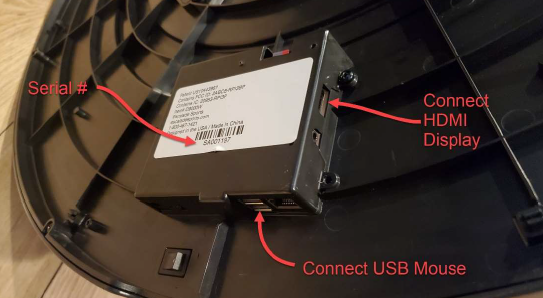
1. Serial #. It is in the format SA00XXXX. It is on the back of the electronics box.
2. Attach a USB mouse and HDMI TV or monitor to the unit and turn the unit on. Throw a couple of darts at the board. Click on the gear icon in the upper left corner and then click on “Live View”. Take a picture of the whole display without a flash.
3. System version. It can be by going to the gear icon in the upper left corner and then click on options. It is near the bottom of that screen
4. A couple of pictures of darts that mis-scored and what they should have been.
Thank you!
Was this article helpful?
That’s Great!
Thank you for your feedback
Sorry! We couldn't be helpful
Thank you for your feedback
Feedback sent
We appreciate your effort and will try to fix the article